Connect an AI assistant over MCP
Add Ripenn to Claude as a connector, so the assistant can read your projects, add prompts, start scans and record your work from the chat you are in.
Most of what the earlier guides read, and some of what they change, an AI assistant can do for you through Ripenn's MCP connector: read a project's visibility, list and add prompts, start a scan after showing you what it costs, record a content action, and audit a page. This guide connects the assistant and shows what to ask it. It is the last guide because everything it can do touches something the earlier guides set up.
Before you start
- A Ripenn account with at least one project: Set up a project and competitors. The assistant sees the projects you can open, across your organisations, nothing more.
- A Claude account on claude.ai that can add connectors. Ripenn's sign-in for assistants only works from Claude today, so other assistants cannot complete it, and there is no key to paste into one.
- Changing prompts from an assistant (adding, re-tagging, pausing, deleting) is available on request. If the assistant says a prompt tool "is not enabled for your account", write to support; reading and scanning work regardless.
- The Content page, where a recorded action shows as a marker, is available on request as well.
Add Ripenn as a connector
In Claude, open the connectors settings and add a custom connector. Give it a name and this address:
https://ripenn.ai/api/mcp
Save it and press connect. Claude sends you to Ripenn in the browser: sign in if you are not already, then a page headed "Connect … to Ripenn", with the assistant's name, shows which account you are signed in as and says what it will be able to do: read your Ripenn projects, brand data and content opportunities on your behalf. Press "Allow", or "Deny" to stop. Back in Claude, the Ripenn tools appear in the connector's list. You will not be asked to allow it again unless you remove the connector, though you may be asked to sign in.
Check it works
Ask the assistant to confirm the Ripenn connection. It answers with the account it is signed in as and can list your projects. From then on name the project in plain words; the assistant works out which project you mean from the brand name, and asks you to choose when two match closely.
Ask it for the numbers, the prompts and the pages
You do not need to know what the connector offers; the assistant picks the right action. Describe what you want in the words the earlier guides use, and each of those guides says what applies to its step. The short version:
- Read the numbers. Ask for a project's visibility summary: mention rates by engine, the topics you cover and the gaps, and how fresh the data is. Ask where each prompt stands, or whether the brand profile has finished extracting.
- Work on prompts. Ask it to list the prompts with their rates, to add one, to re-tag, pause or resume prompts, or to delete some. With prompt management enabled it does all of that, and shows a preview before deleting, since deletion removes the scan history too.
- Scan. Ask it to scan the project. It first shows a preview: how old the data is, how many prompts, that the scan runs on the project's engines, roughly how long, and that the runs draw on the monthly allowance first and credits after, exactly as the header "Scan" button's do. After you agree, it starts the scan, and can report when it is done.
- Find the page to work on. Ask for the pages you have that the engines do not cite for the topics they should own; for the pages that rank in Google and are absent from AI answers, once Search Console is connected; for an audit of one address; or for which data sources are connected and how current they are.
- Record the work. Tell it what you changed and when, and it writes the same record the Content page's "Record an action" writes. Ask it to say which prompt a page targets, or to read the before and after of a change you recorded.
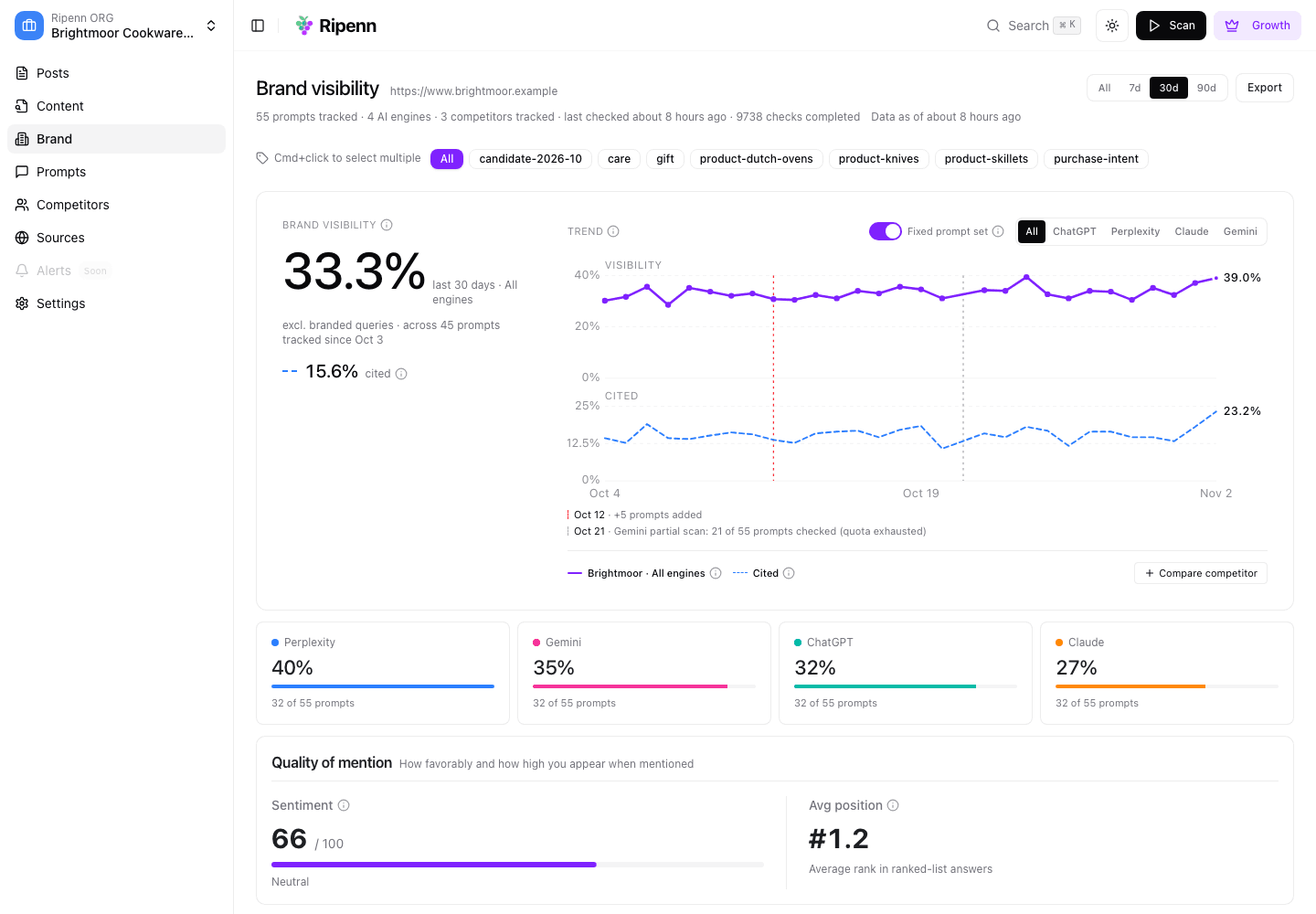
A useful first conversation: ask for the visibility summary of a project, then for the prompts where you never appear, then for the pages that rank in Google but not in AI answers. That is the Brand page's Gaps list and the Content page's opportunity filter, read aloud.
What you will see
In the app, nothing looks different. A prompt the assistant added shows in the Prompts table like any other; a scan it started shows the same "Visibility check in progress…" banner when you open or reload the Brand page; an action it recorded appears as a marker on the page's history chart. The records are tagged as the assistant's, so you can tell later which changes came from a chat.
What to keep in mind
The assistant reads the same numbers the app shows, so a figure it quotes is as fresh as the "Data as of" line on the Brand page and no fresher. If it wants newer numbers it has to scan, and a scan draws on the monthly allowance first and credits after, as the preview says.
An assistant can misread a project name. When two projects could match, it asks you which one; when only one matches loosely, check the project it names before you let it write anything.
Changes are real. A prompt it adds is tracked from the next scan; a scan it confirms spends your allowance; a deletion it confirms removes the history. The preview exists so you see what is about to happen, but it is the assistant that asks, not Ripenn. If an assistant skips the question, the scan still starts, so read the preview and tell it to ask.
Ripenn keeps a record of which actions the assistant took on your account and whether they succeeded. What you type, your prompts and the engines' answers are not part of that record.
Next
That is the whole loop, from the app or from the assistant. Go back to the guides index to pick up a step, or read the methodology page for how each number is defined.
Written by