Set up a project and competitors
Create a project from your website, check the brand profile Ripenn extracts, and name the competitors it should look for in AI answers.
This is the first thing to do in a new account. By the end you have a project with a brand profile you have read and corrected, and a short list of competitors with the name variants the engines actually use. Everything after this, from the prompts Ripenn suggests to the share of voice it reports, is built on those two things.
Before you start
- A signed-in Ripenn account. New accounts land on this step automatically; existing accounts start it from the project switcher in the sidebar.
- Your website address. Ripenn reads the site to draft the profile, so a site that blocks automated visitors, or a holding page, gives you an empty draft to fill by hand.
- Contributors (members with view-only access) cannot create projects; an owner or member does that.
Create the project from your website
A new account sees one screen: "Let's set up your AI visibility". Enter the website and press "Continue". Ripenn creates the project, names it after the domain, and starts extracting the brand profile. No scan runs yet; the third guide starts the first one. If Ripenn cannot read the site, the project still exists: open "Settings", then "Brand profile", and either press "Analyze" to try again or type the profile in by hand.
In an existing account, open the project switcher at the top of the sidebar and choose "New project". The only field is "Website (so we can analyze your brand)". Press "Add" and you land on the project's Brand page while the extraction runs. Your plan caps how many projects an account can hold, and the free plan holds one brand profile; at the cap the app opens an upgrade dialog instead of creating one.
Read the draft profile before you confirm it
Open "Settings" and the "Brand profile" tab. While the crawl runs the card reads "Analyzing website" and shows its progress while it reads your site and drafts the profile. The page says this usually takes fifteen to thirty seconds.
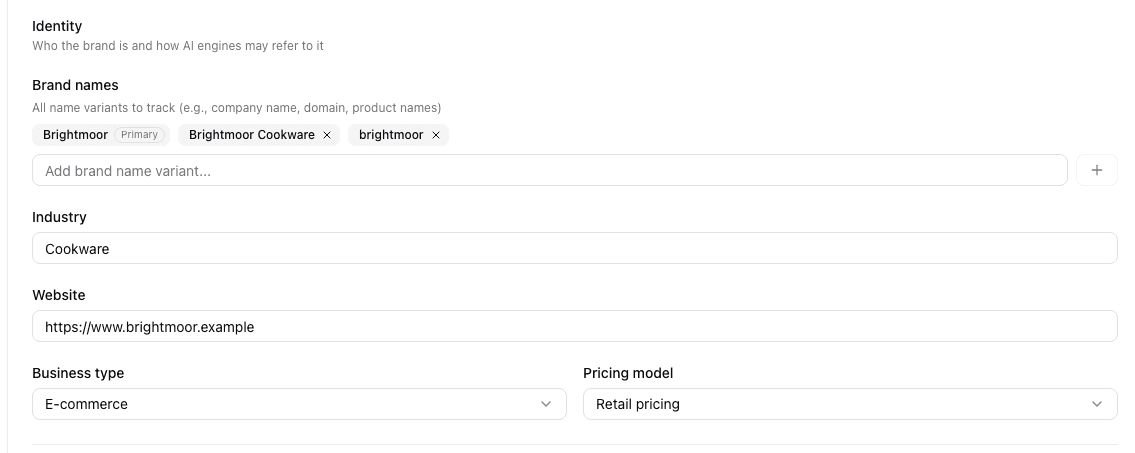
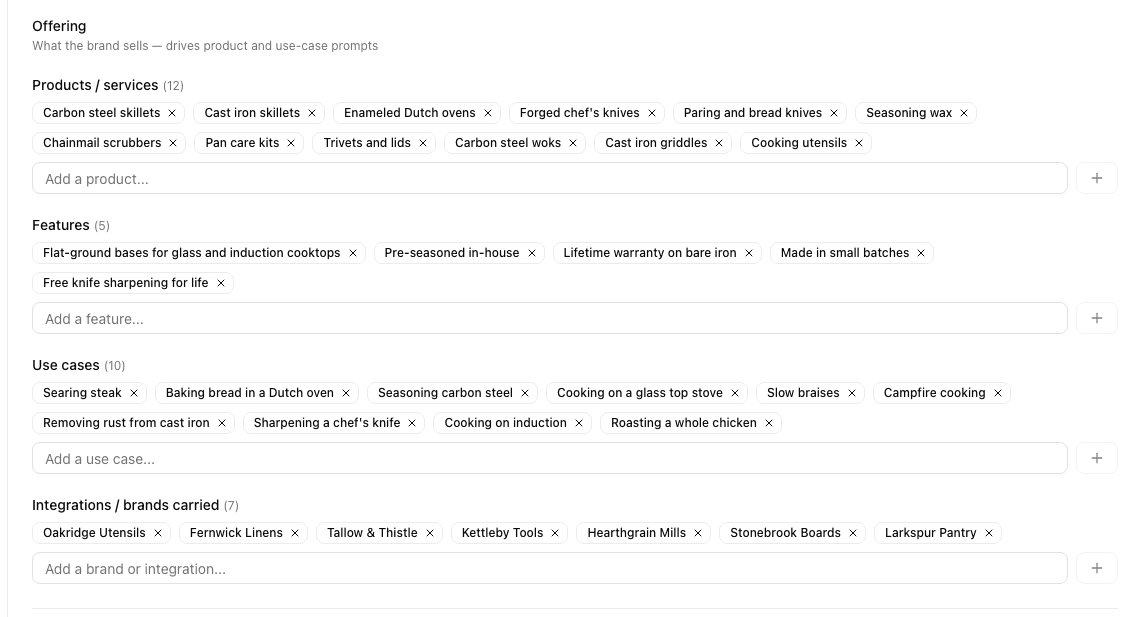
Then the card changes to "Review Brand Profile". Its badge says how many of the seven sections were detected. Read every field as if a new colleague had written it: brand name, industry, business type, pricing model, products and services, brands carried, competitors, locations, target customers, features, use cases, a one-line description of your ideal customer and anything else it picked up about the brand. Fix what is wrong and add what is missing. Competitors in particular are often half right: the extraction finds the names your own pages mention, which are not always the names a buyer compares you with. Press "Confirm & Continue" when it reads true.
Ripenn reads your site once per project, as the "Analyze website" card says before a profile exists. After you confirm, the card offers "Next: review your prompts →"; every later change is made in the "Brand configuration" card below it, which saves as you type.
Illustrative data from a demo project.
Add competitors and their name variants
Illustrative data from a demo project.
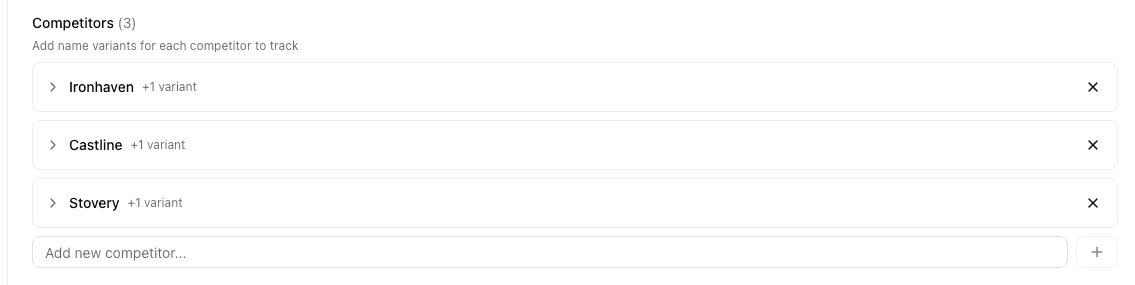
In "Brand configuration", scroll to "Tracking". The "Competitors" block lists each competitor with how many name variants it carries. Type a name into "Add new competitor..." and press Enter. Open a row to add variants under "Add name variant..."; the first name stays as the primary and cannot be removed, and the cross on the row deletes the competitor.
Illustrative data from a demo project.
Variants are how Ripenn recognises a competitor under more than one name. An engine that writes "Ironhaven Cookware" in one answer and "Ironhaven" in the next is talking about one competitor, and Ripenn only knows that if both spellings are in the list. The demo brand, Brightmoor Cookware, tracks three competitors with one variant each. Do the same for your own brand under "Brand names": the domain, the short name, the product name people use instead of the company.
Your plan caps how many competitors a project tracks. If a competitor will not save, check first whether you have reached your plan's limit; the card only says "Save failed".
What you will see
If you have connected an AI assistant, you can ask it whether the brand profile is ready and to list your projects; the new one appears as soon as it is created.
The Brand page's header counts the prompts tracked, the engines and the competitors tracked, so the number there should match your list. The Competitors page stays on "No competitors configured" until the list has at least one entry, and stays empty of charts until the first scan. After a scan it shows share of voice between you and the competitors you named, and the ownership table marks each prompt Owned, Shared, Lost, Uncovered or Expected against them. The ownership status definition explains those five words.
What to keep in mind
The profile is a draft read off your website, not a fact about your business. A wrong product list produces wrong prompt suggestions in the next step, so correcting it here is cheaper than deleting prompts later.
Ripenn recognises brands by name only. A competitor the engines describe by a product name you did not add is counted as nobody, and your own brand is only recognised under the names in "Brand names". When a prompt itself contains one of your brand names, Ripenn treats the mention as handed to the engine, not earned, and leaves it out of the headline rate.
The ownership table compares you with direct competitors, and every name you add here counts as one; there is no way in the app to mark a marketplace or a platform as something else, so one you list will show up as "Lost" on prompts where it is named and you are not.
Next
With the profile confirmed, the app takes you to prompts: Choose your first prompts.
Written by