Choose your first prompts
Prompts are the questions Ripenn asks the engines on your behalf. How to take the suggested set, write or import your own, and keep the set readable.
A prompt is one question Ripenn asks ChatGPT, Perplexity, Claude and Gemini on your behalf, every scan, and reads the answer to. The prompt set is the measuring instrument: a brand looks visible or invisible depending on which questions are in it. This guide gets you from a confirmed brand profile to a first set you would defend, and shows the three ways to add to it later.
Before you start
- A project with a confirmed brand profile: Set up a project and competitors. The suggestions are generated from that profile, so a wrong product list gives wrong prompts.
- The first set is generated on any plan. Asking again with "Suggest Prompts" needs a paid plan; on the free plan the button is locked and says so.
Take the suggested set, then edit it
When you confirm the profile, the app sends you to "Prompts" and, if the project has none yet, starts generating a first set on its own. The card reads "Generating prompts" and says it usually takes thirty to sixty seconds. It is followed by "Review Generated Prompts", one row per suggestion with its category.
Read them as a buyer would. Remove the ones nobody would type. Rewrite the ones that are nearly right. "Add a prompt" lets you add your own before accepting. Then press "Accept … Prompts & Start Monitoring" under the list; the button shows the count in the middle. Accepting saves the set; the first scan is the next guide.
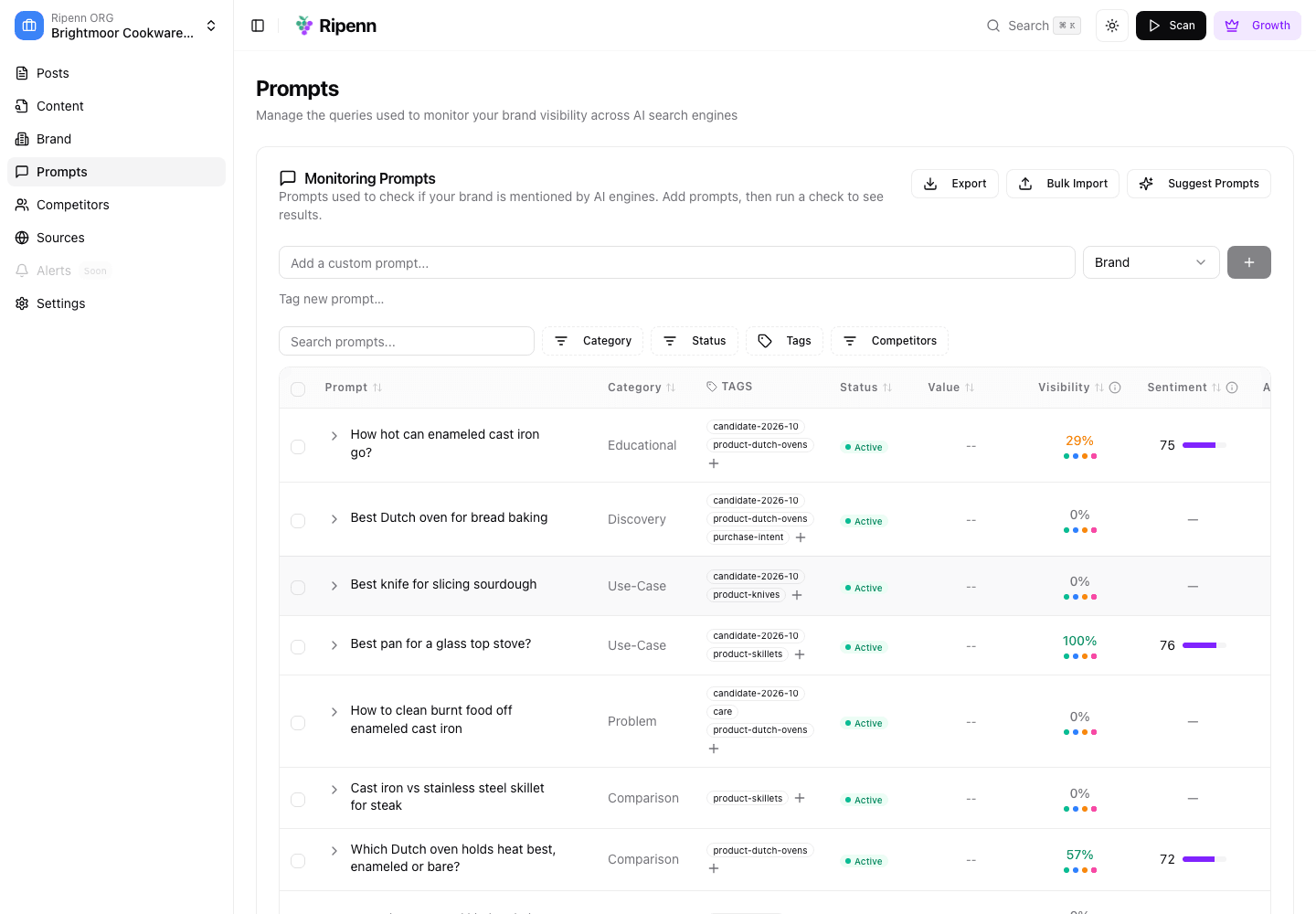
A good first set covers the ways people reach your category, not just your products. The demo brand, Brightmoor Cookware, tracks "Best pan for a glass top stove?" (a use case), "Carbon steel vs cast iron for searing" (a comparison) and "Why is my cast iron skillet sticky?" (a problem) alongside the obvious "best cast iron skillet" discovery questions. If every prompt in your set names your product type, you are measuring the shelf and missing the aisle.
Illustrative data from a demo project.
Write one at a time
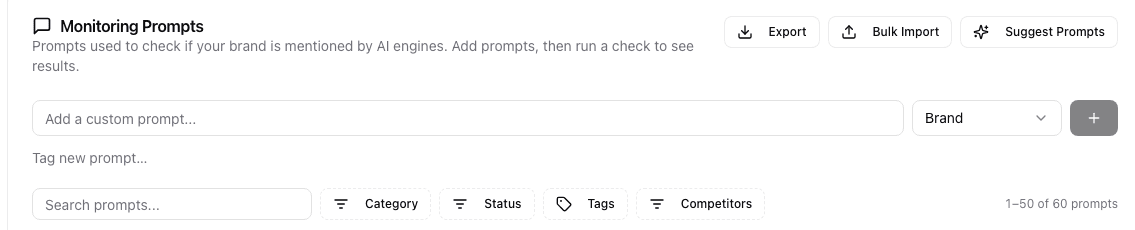
Illustrative data from a demo project.
Above the table, type into "Add a custom prompt...", pick a category from the selector beside it, and press the plus. "Tag new prompt…" underneath attaches tags as you go. Write the question the way a customer would phrase it to an assistant, with the detail they would include: "best Dutch oven for no-knead bread", not "dutch oven".
Import a list you already have
"Bulk Import" opens "Bulk Import Prompts": paste one prompt per line. You can put a category after each prompt, separated by a comma, matching one of your category names; lines without one are categorised for you. Press "Analyze & Categorize" and check the review table: duplicates of prompts you already track are marked and skipped, and every row's category can be changed before you press "Import …", the button that carries the count. A "Tags" field on the review step applies one or more tags to the whole batch, which is the easiest way to mark a set you may want to compare later. One paste takes up to a hundred lines.
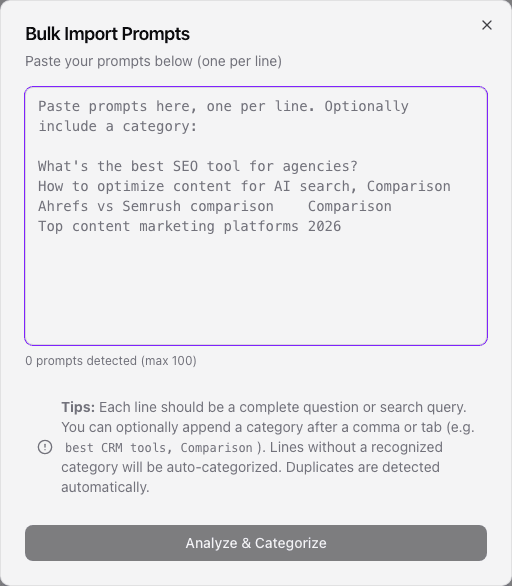
Illustrative data from a demo project.
Ask for more suggestions later
"Suggest Prompts" asks Ripenn for a fresh set, based on the profile as it is now. Each plan includes a few suggestion requests a month; past that, a dialog says how many credits a request costs and asks first. A second request is drawn from the same profile, so change the profile before you ask again.
Or let an assistant do it
With an AI assistant connected over MCP, the same work can be done from a chat: ask it to list the prompts with their rates, to add one, to re-tag, pause or resume prompts, or to delete some, which it previews before it does. Reading always works; making changes from an assistant is available on request.
Categories, tags and status
Every project starts with six categories: Brand, Comparison, Discovery, Educational, Problem and Use-Case. The Competitors page breaks share of voice down by them, so a prompt in the wrong category muddies that chart. You can add your own under "Prompt Categories" on the Brand profile tab of Settings; each needs a description, because Ripenn uses the description to decide which prompts belong in it.
Tags are free-form: a product line, a campaign, a month. The Brand page filters by tag, so a tag is how you ask "how are we doing on the knife questions" without a second project.
The Status column is read-only. Ripenn switches a prompt off itself when scan after scan finds no brand mentioned at all, or little value in the answers. Prompts imported beyond your plan's limit arrive inactive; on paid plans they can still be scanned using credits.
What you will see
The table's value, visibility, sentiment and position columns stay as dashes until the first scan. Once the set is saved, the Prompts page shows "Next: your first scan" and the Brand page offers "Run your first scan →". Prompts that contain one of your brand names are scanned but left out of the headline rate; the methodology page's note on organic mentions explains why. Keep a few anyway: they are how you read what the engines say about you by name.
What to keep in mind
Adding prompts changes which questions the rate is averaged across. A set that grows from ten to forty will move the visibility line on the day you add them, whatever the engines did; the Brand page marks those days and can pin the chart to a fixed set, which the next guide covers.
Suggestions are drawn from your own site, so they lean toward the words you use, which are not always the words buyers use. A list of real search queries, pasted through "Bulk Import", corrects for that.
Deleting a prompt deletes its scan history with it, as the confirm dialog says; leave a prompt in place if you might want its history.
Next
With a set saved, run it: Run and read your first scan.
Written by