Run and read your first scan
What the two scan buttons do, what it costs from your allowance, what the Brand page shows when the scan lands, and which numbers to trust on day one.
A scan sends every active prompt to the engines you have chosen, as many times as you have asked, and reads each answer for your brand, your competitors and the pages it cites. This guide runs the first one, tells you what the two scan buttons do, and walks the Brand page once the results land.
Before you start
- A confirmed brand profile and at least one active prompt: Choose your first prompts. Once "Automatic monitoring" is on, the Monitoring tab says so when either is missing.
- Scans run on paid plans. Contributors can see results but cannot start a scan; an owner or member does that.
Run the quick first reading
On a project with no scans, the Brand page opens on a card headed "What you'll see here" with a button, "Run your first scan →". The Prompts page shows the same button under "Next: your first scan". Either one runs a free first reading: one engine, ChatGPT, one answer per prompt, once for each user. The free reading uses ChatGPT only; a full scan, which the next section covers, asks all four engines, which is what the card above the button describes. From the Brand page a short message confirms the scan has started; from the Prompts page you are taken to the Brand page.
That reading is for orientation, not measurement. Expect the Brand page to show a single engine card filled in and a rate drawn from one answer per question. If you have already used your free scan, the button opens an upgrade dialog instead; use the header button below.
Run a full scan from the header
The "Scan" button at the top of every project page runs with the settings on the Monitoring tab, the engines and repeats you chose, charged against your plan's monthly run allowance. On the free plan it refuses and says scans are available on paid plans. A run is one prompt asked once on one engine, so the size of a scan is prompts times engines times repeats. If a scan would go past the allowance, a dialog headed "This scan uses credits" says how many runs it needs and what the credits cost before you confirm.
While it runs, the Brand page shows "Visibility check in progress…" with a count of checks done and mentions found, and the Prompts page shows the same with an estimate of the minutes left. A message says "Visibility check complete!" at the end. A first full scan on a freshly suggested set takes a few minutes; larger sets take longer in proportion.
An AI assistant connected over MCP can start the same scan. Ask it to; it first shows a preview of the prompt count, the duration and what the runs draw on, starts the scan once you agree, and can tell you when it has finished and what it found. It is billed exactly like the header button.
Set monitoring so you stop pressing the button
Open "Settings", then "Monitoring"; on the free plan the tab says only that automatic monitoring is available on paid plans. "Automatic monitoring" schedules scans at the "Check frequency" you pick: daily, three times a week or weekly. "Repeats per scan" asks each engine the same question one, two or three times; the panel says it plainly: "More repeats smooth out answer-to-answer variation. Fewer cost less." Tick the engines under "Engines"; ones your plan does not include are locked. The line underneath estimates runs per scan and per month against what your organisation has left, and updates as you change them. Each change saves at once; there is no save button.
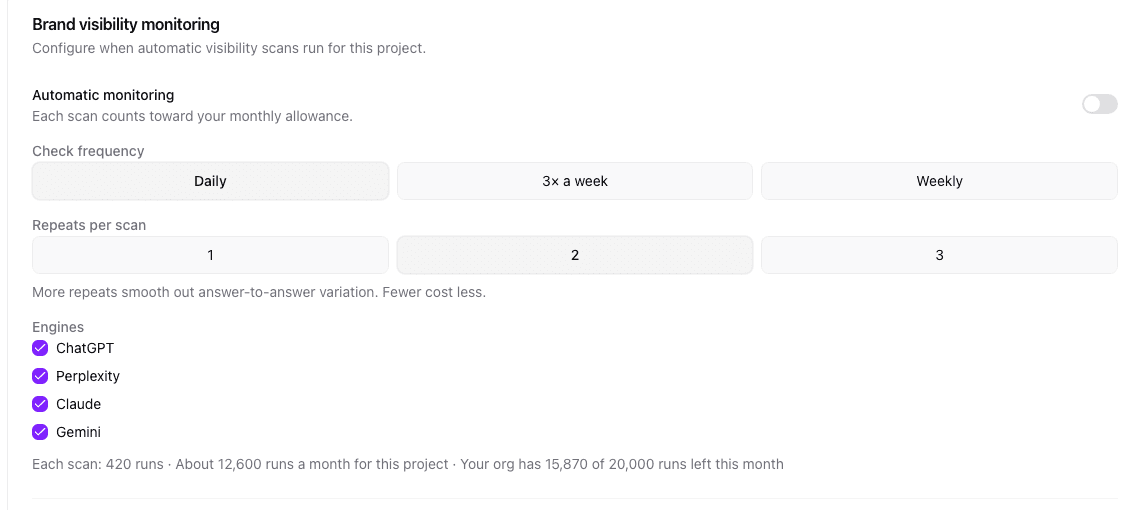
Illustrative data from a demo project.
Gemini answers each prompt once per scan, whatever repeat count you choose, because of a limit on Gemini's side. If Gemini stops answering part-way through a scan, the trend chart marks that day as a partial Gemini scan.
What you will see on the Brand page
Once a scan has landed, the Brand page opens on the last month, or on all time if there is nothing in the last month yet. From the top:
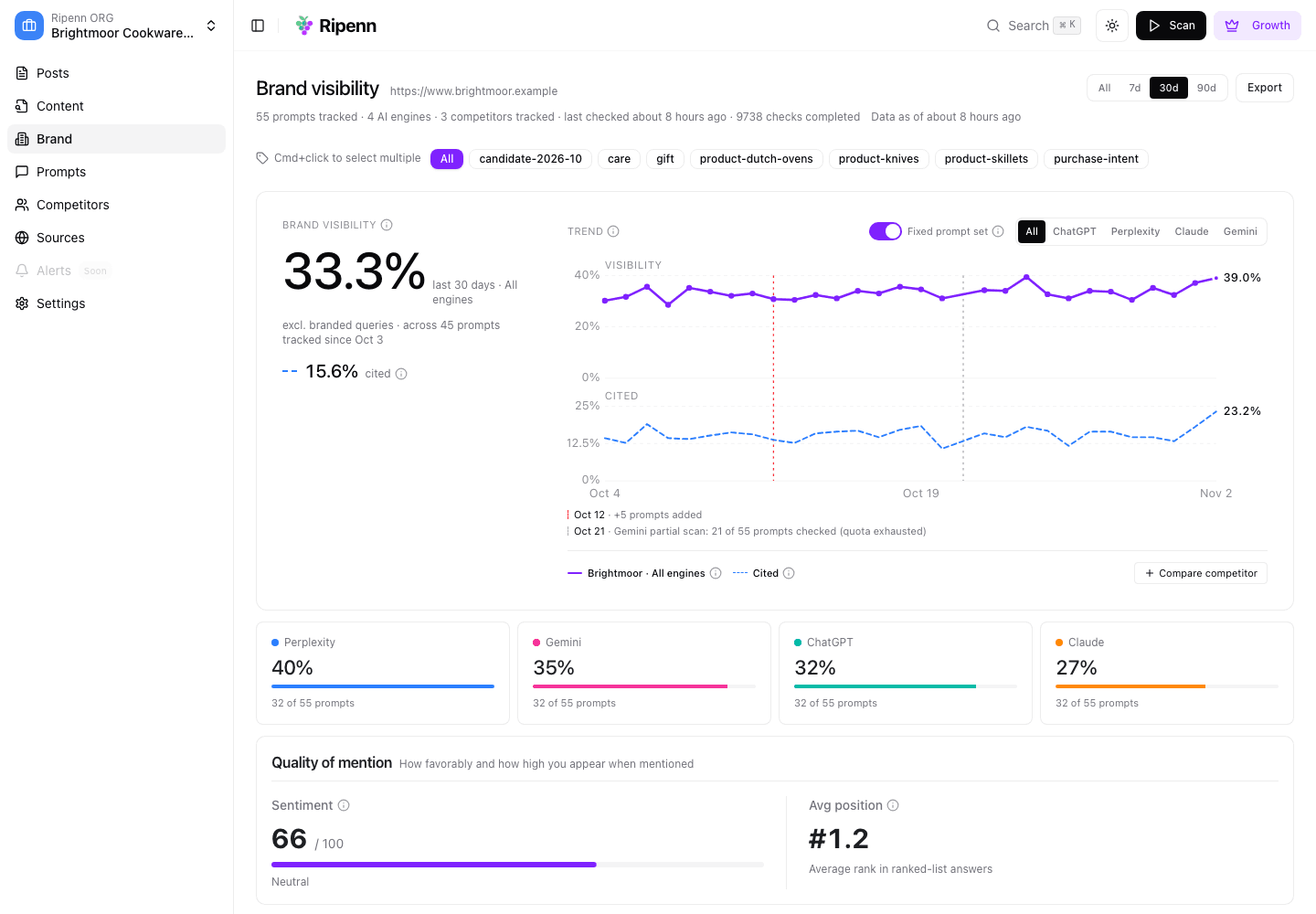
- The header counts prompts, engines, competitors and checks, and "Data as of" says how fresh the numbers are.
- The hero number is your [brand
visibility](/methodology/understanding-ai-visibility-metrics#overall-visibility-mention-rate): of all the answers to your prompts, the share that mentioned you, with prompts that name your brand left out. Next to it, "cited" is the share of answers that cited one of your pages, the brand citation rate.
- The trend chart draws both over time and needs two checks in the window before it draws anything. Days you added prompts are marked underneath, and the "Fixed prompt set" switch holds the set still so a step in the line is a change in the answers, not in the questions.
- One card per engine shows how many of your prompts it mentioned you on, and "Quality of mention" gives a sentiment reading and an average position.
- "Top performing" lists prompts where you appear in at least half the answers; "Gaps" lists prompts where you never appear. Gaps is the list to work from.
Illustrative data from a demo project.
Open any prompt from the Prompts table for the evidence behind its numbers: each engine's latest answer in full, the phrases behind the sentiment reading, and the pages it cited or retrieved.
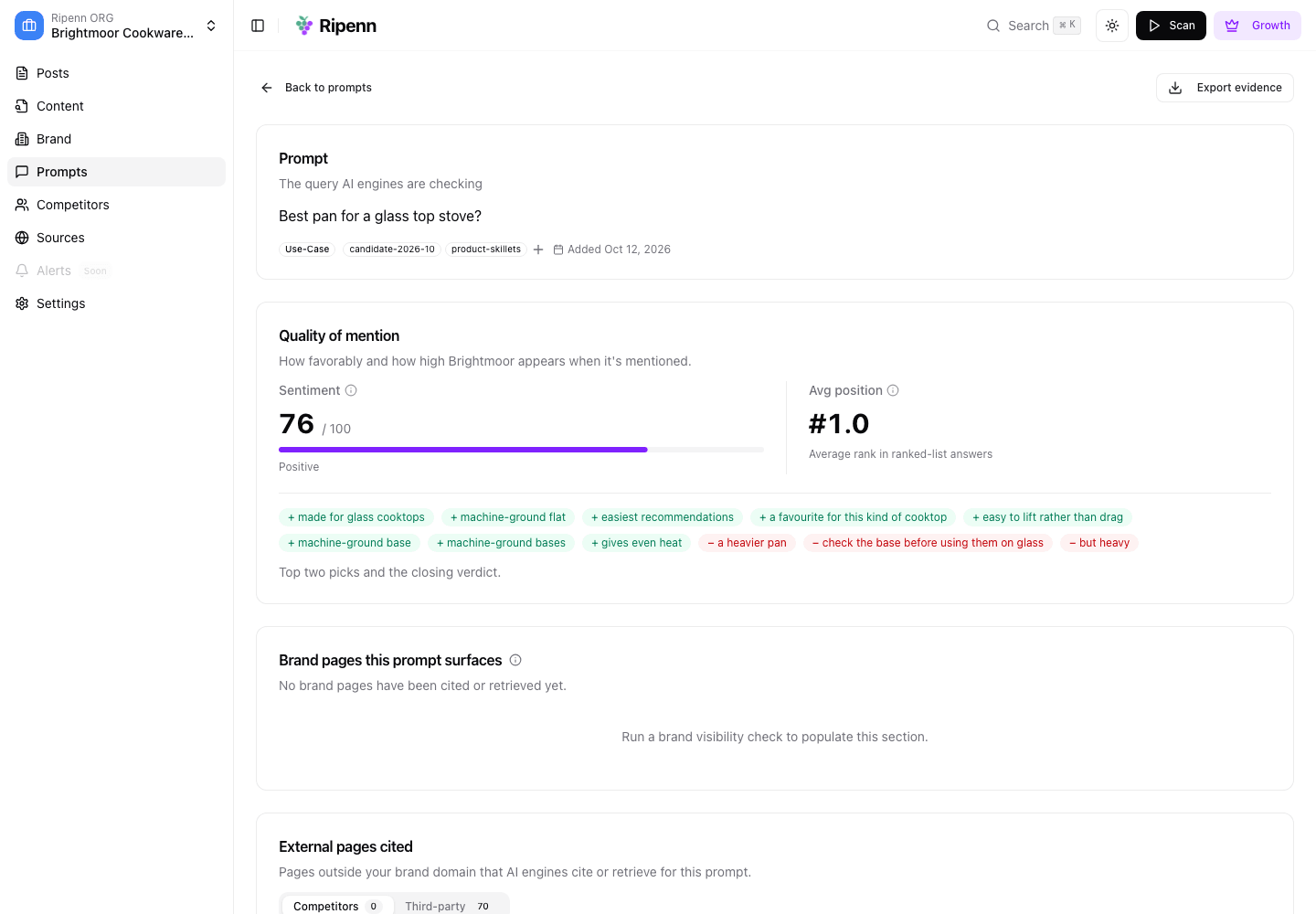
Illustrative data from a demo project.
What to keep in mind
One scan is one reading. The same engine answers the same question differently from one try to the next, which is why repeats exist and why a rate across many runs is the number to watch. Act on the second week's trend, not the first scan's rate.
Average position is shown for reference only: where a brand lands in a list moves from run to run. The sentiment reading is Ripenn's automated reading of the answer; the phrases under it are there so you can disagree with it.
The free first scan covers one engine. Until you run a full scan, the other engine cards are empty and the hero rate describes ChatGPT only.
Next
The engines are one side of the picture. The other is the traffic you already measure: Connect Search Console and GA4.
Written by