Connect Search Console and GA4
Put the clicks and sessions you already measure next to the citations the engines give your pages, so the Content page can rank pages by demand.
Citations tell you which of your pages the engines lean on. Search Console and Google Analytics tell you which pages people actually reach. The Content page puts the two side by side: a page with real search demand that no engine cites is the clearest thing to work on, and Ripenn can only find it once both sides are connected. This guide connects them.
Before you start
- A project. Nothing here needs a scan; the comparison only has something to show once scans have run, so it is fine to connect early.
- Owner or member role. Contributors (members with view-only access) do not get the connect buttons.
- A Google account with access to the Search Console property and the Google Analytics property for your site. If you use separate accounts for the two, that is fine; each connection asks Google separately.
- Integrations are available on request. If you do not see "Integrations" in the sidebar, write to support.
Connect Search Console
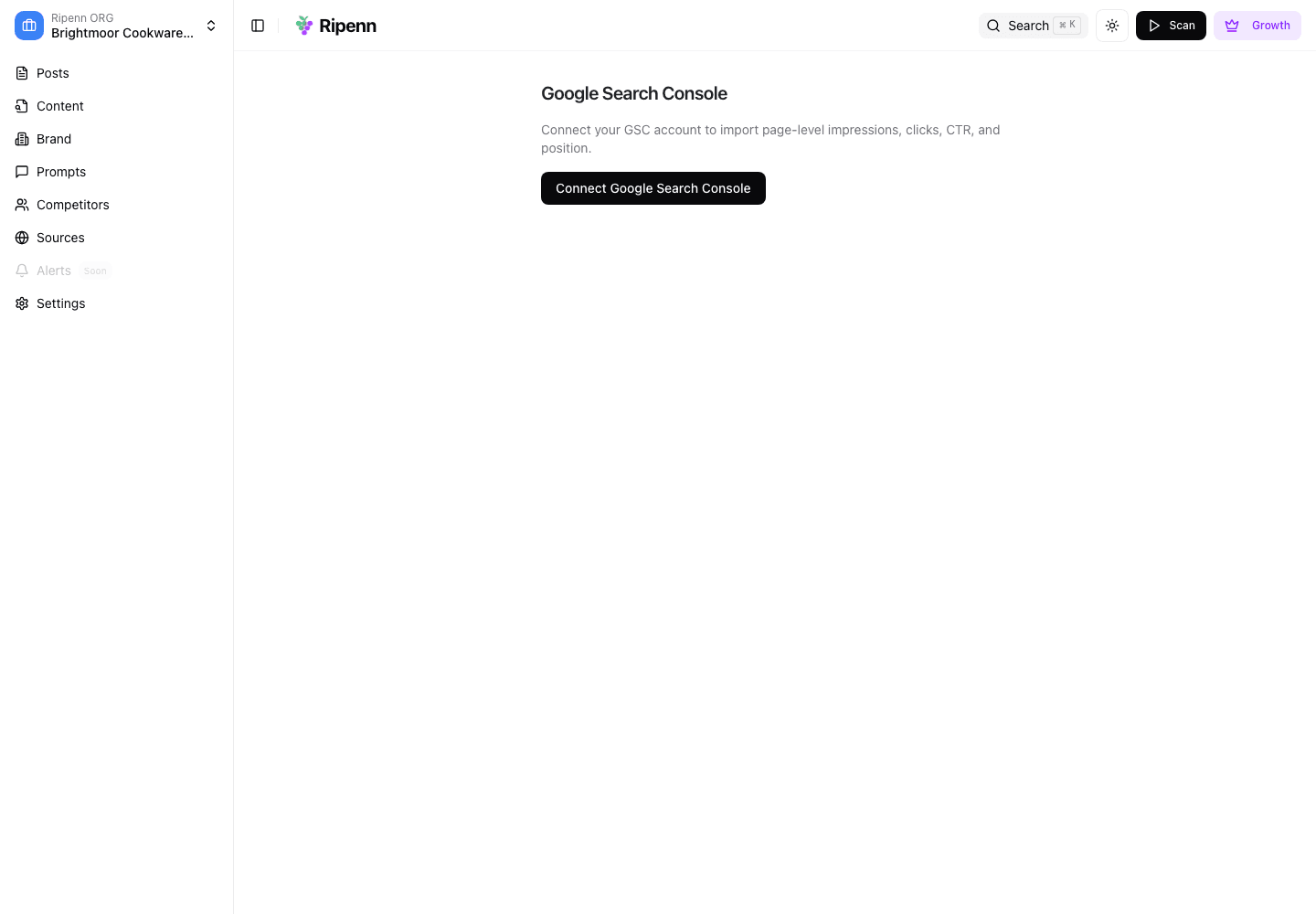
Open "Integrations" from the sidebar. The "Google Search Console" card describes what it syncs, per-page impressions, clicks, click-through rate and position, and offers "Connect Google Search Console". That opens a page of the same name with its own "Connect Google Search Console" button; press it and Google asks you to sign in or pick an account, then to allow read-only access to Search Console; it asks every time you connect, even if you have allowed it before.
Back in Ripenn the page reads "Pick the verified site to track for this project." Choose the property that matches the website in your brand profile and press "Connect". A message says "Connected." Connecting does not bring in any data yet: on the connection card press "Sync now". The card shows a progress bar with "Syncing your Search Console data…" and tells you it may take a few minutes and that the page can be closed. When it finishes the card says when it last synced and how many pages it holds.
Illustrative data from a demo project.
Connect Google Analytics
The "Google Analytics" card on the same page offers "Connect Google Analytics", which opens a page with the same button; that press asks Google for read-only Analytics access. Then "Pick the GA4 property to track for this project." lists your properties grouped by account. If the Google account you chose has none, the page says so and offers "Try a different account". Pick the property, press "Connect", then "Sync now" as before. The connected panel names the property and the account it was connected with.
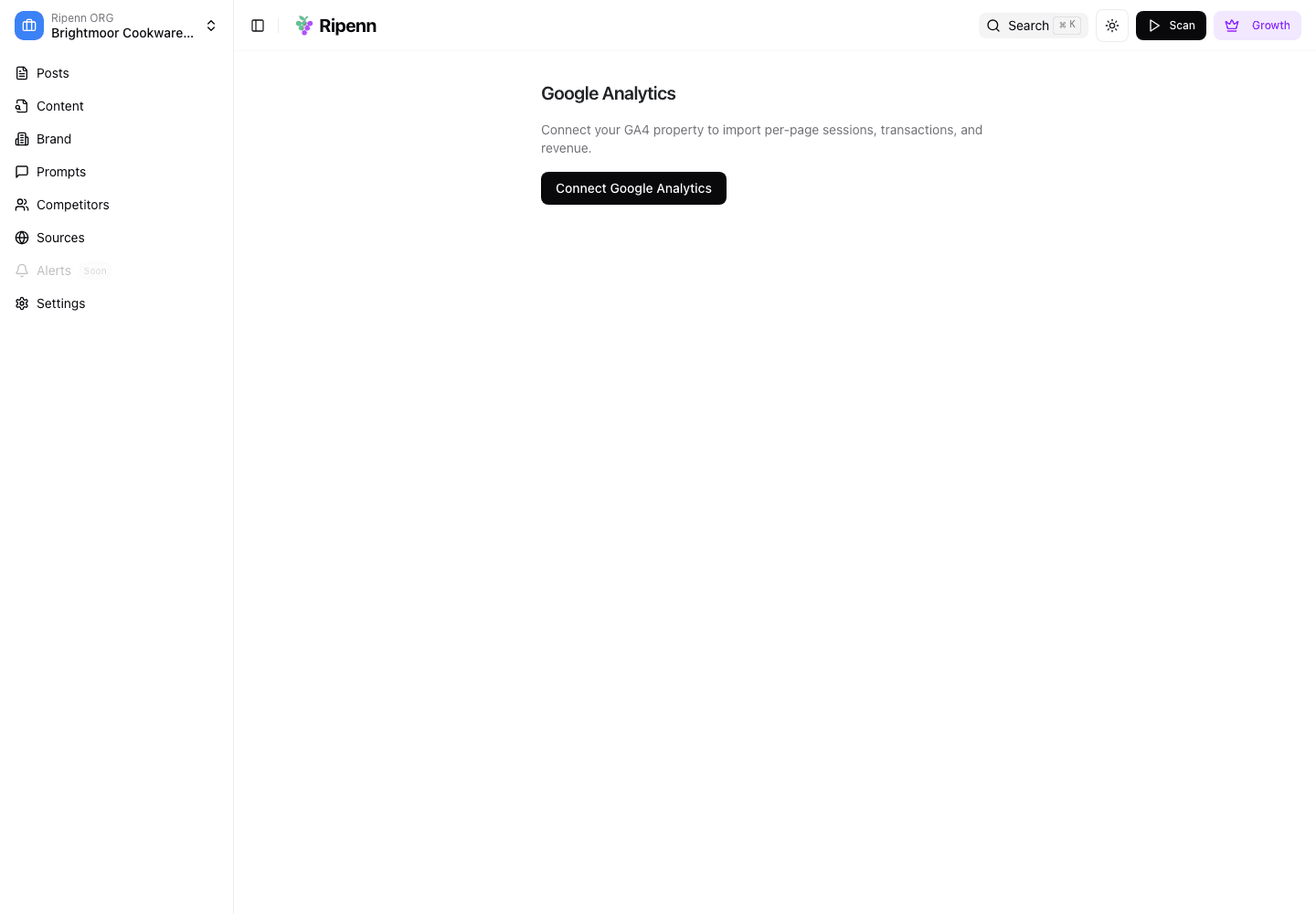
Illustrative data from a demo project.
Check what a sync brought in
Each sync covers the last ninety days. Search Console sends per-page clicks and impressions and the queries behind them, and runs about two days behind, as Search Console itself does. Google Analytics sends sessions, transactions and revenue for landing pages from the organic search channel only, and leaves out pages with fewer than about twenty such sessions in the window.
The data refreshes when you press "Sync now" on either card. Ripenn also refreshes it when a scan runs, if the data is more than a week old. A project with no scan schedule keeps the numbers from its last manual sync.
What you will see
On the Content page, two columns fill in, headed Clicks and Sessions with the ninety-day window beside each: the Google Search clicks each page received, and the organic sessions that landed on it. A dash means that source has no data for that page, which for Google Analytics includes every page under its minimum of about twenty sessions. The opportunity score and its "Has opportunity" filter use the clicks, so that filter has rows to show only after a Search Console sync. A page's detail view shows the same traffic as a headline stat.
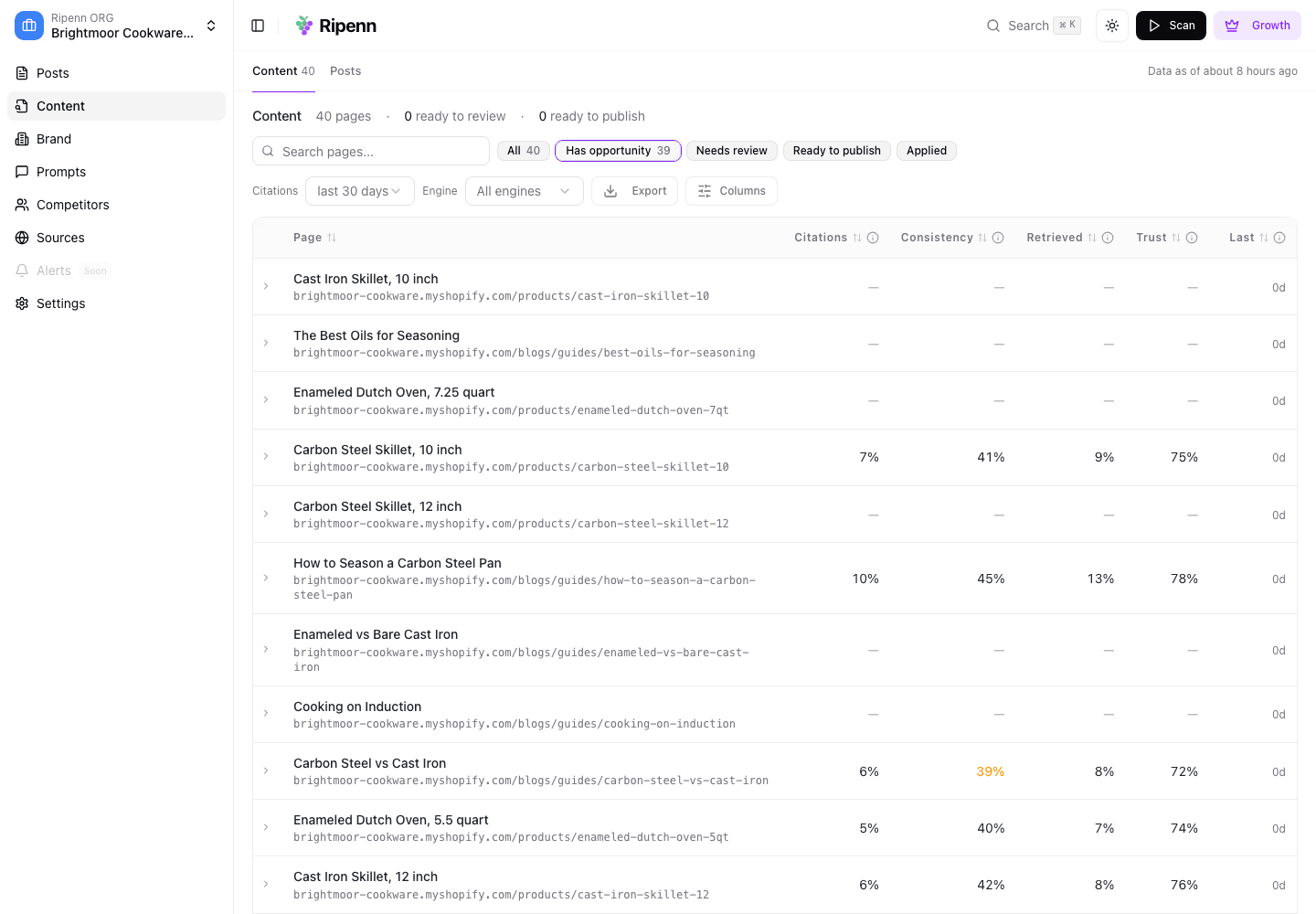
Illustrative data from a demo project.
An AI assistant connected over MCP can tell you which sources are connected and how current each one is, and once Search Console is in, list the pages that rank in Google but are absent from AI answers.
Disconnecting
Each connection card has "Disconnect", behind a confirmation. It removes the connection and Ripenn's access at Google; the data already imported stays on the project. If Google ever withdraws Ripenn's access, the card shows an error; connect again to fix it.
What to keep in mind
Search Console's numbers are Google's, with Google's two-day lag; a sync is a copy of what Search Console would have shown you that day. Google Analytics counts only organic-search landing sessions and only pages above its floor, so a page with a dash is not a page with no traffic. And both are a ninety-day window next to a citation window you choose on the Content page; when the two windows differ, treat the comparison as rough.
Connecting one source and not the other is fine. The Content page shows whichever columns have data and hides the rest.
Next
Give the Content page your pages: Import your Shopify catalogue.
Written by