Import your Shopify catalogue
Connect a Shopify store and pull its products, collections, pages and articles into the project, so every page has a row on the Content page.
The Content page can only rank pages it knows about. Scans add the pages the engines cite; an import adds the rest, so a product page that no engine has ever cited still shows up, with its traffic, as a candidate. For a Shopify store the import comes straight from the store. This guide connects one and runs the first import.
Before you start
- A project with a brand profile; a scan helps but is not required.
- Owner or member role in the Ripenn organisation, and a Shopify login that can install apps on the store.
- Integrations are available on request. If you do not see "Integrations" in the sidebar, write to support.
- If "Connect Shopify" shows "Shopify app not configured for this project", write to support with your store's address; Ripenn prepares the connection for you first.
Connect the store
Open "Integrations" and the "Shopify" card: "Import products, pages, articles, and collections". Press "Connect Shopify". On the Shopify page, the "Connect a store" card says what happens next: you are sent to Shopify to authorise Ripenn, and the app asks for read and write access to articles, pages and product information. The import itself only reads.
Type the store into "Shopify store domain". Your store's short name, its myshopify.com address or its admin address all work; your own custom domain does not. Press "Connect Shopify", approve the app on Shopify's screen, and you return to the same page with the store listed under "Connected stores". The store appearing in the list is the confirmation.
Run the import
On the store's row press "Import content". The page is headed "Import from" your store, and the first card, "Load store contents", fetches the current list of products, pages, articles and collections. Press it; the list arrives with every item selected, each row showing its type, title and web address. "Clear" and "Select all" set the selection wholesale, and you can untick what you do not want measured, such as a legal page or a discontinued collection. Press "Import … selected", the button that carries the count.
The next page, "Import in progress", counts the items imported and splits them into new, updated and failed. "All done" lists failures; there is no retry button, so a failed item is picked up by running the import again. A large catalogue takes a few minutes.
What you will see
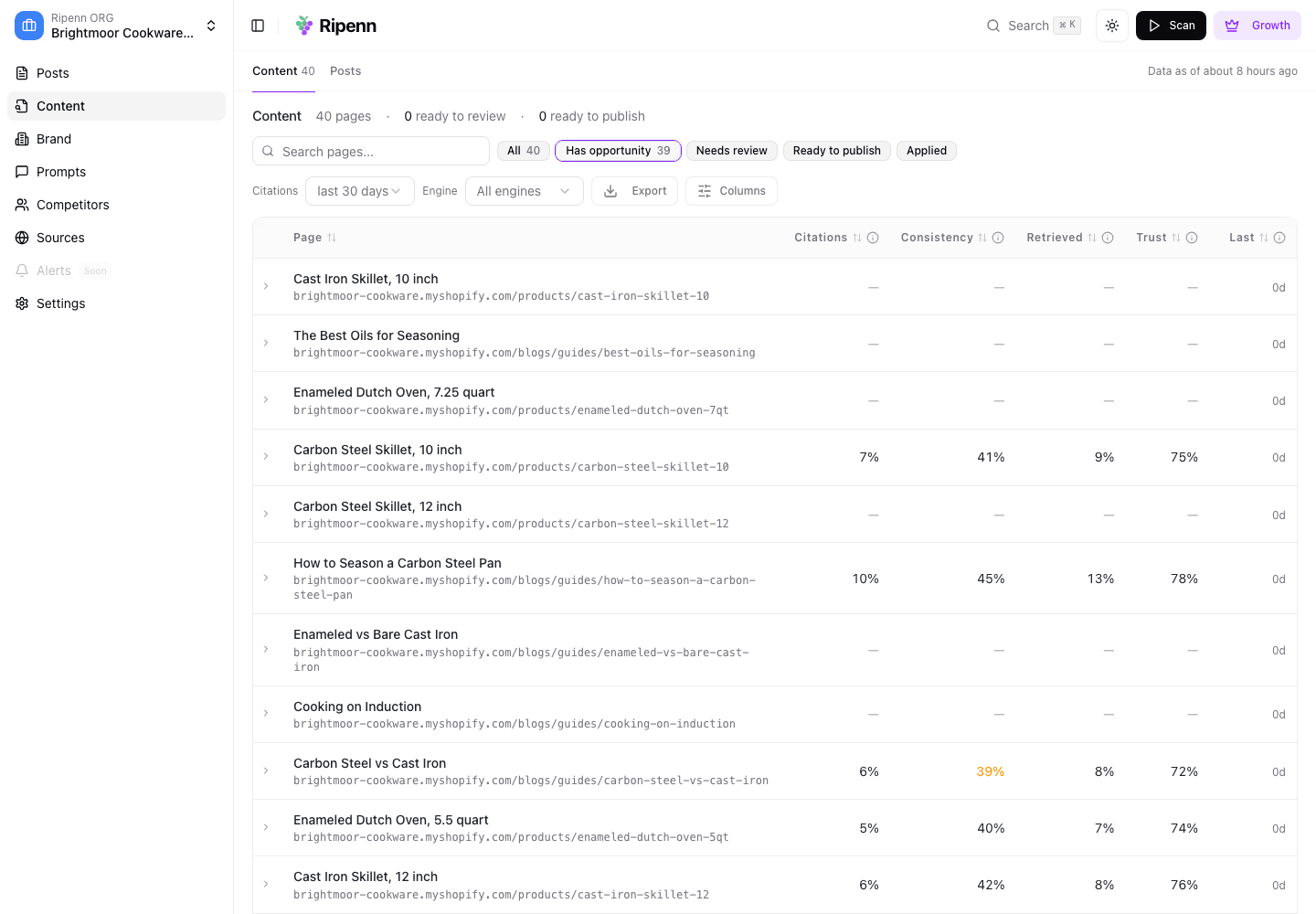
Open "Content" from the sidebar. Each imported item appears as a row with its address on your store: products, collections, pages and articles under their blog. The citation columns stay as dashes until a scan cites the page; the clicks and sessions columns fill in from Search Console and Google Analytics if those are connected. Ripenn matches by the part of the address after the domain, so a store that sells on its own domain still matches pages imported under the myshopify address.
Illustrative data from a demo project.
An AI assistant connected over MCP can read an imported page's latest body and audit a single address, so a rewrite can start from what Ripenn actually holds.
Keeping it current
Running the import again from the same account updates the rows that already exist rather than creating duplicates; new products arrive as new rows. Nothing re-imports on its own: after a catalogue change you care about, come back and run it again. Imported pages are tied to the Ripenn user who imported them, so repeat the import as the same user.
"Disconnect" on the store's row removes the connection and leaves the imported rows in place.
What to keep in mind
The import is the catalogue as Shopify describes it, at the moment you ran it. Pages you change afterwards keep their imported copy until the next import, and the page checks on the Content page look at that copy, not the live page.
A re-import lists and processes everything, including items you imported before, and counts them as updated; that is not a sign that anything changed.
Only Shopify is supported this way. For a store on another platform, the Content page still fills from the pages your scans find cited; what it misses is the uncited remainder.
Next
With traffic connected and pages imported, the table has everything it needs: Read the Content page and act on it.
Written by